Still photo in, motion out
Photo to Dance Video
Photo to dance video is the shortest path from a picture you already have to a clip you can post. One clear photo goes in; a continuous dance shot comes back, with the face and body proportions carried over from the original.
One free 480p · 5s video preview per account. Image renders from 3 credits. No watermark.
The short answer
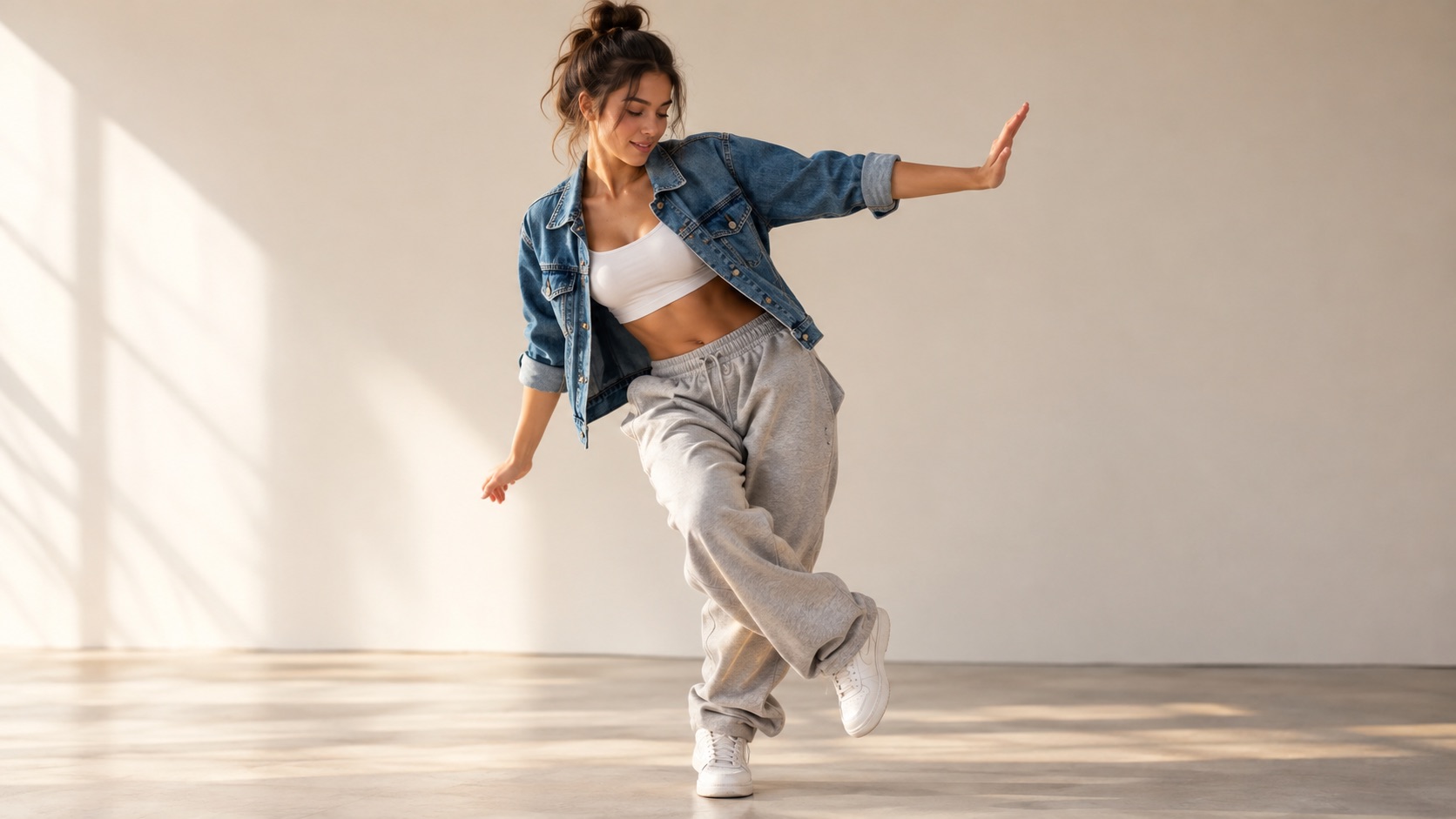
Upload one clear photo, choose a movement look, and Seedance 2.0 renders a 4–15 second dance clip that keeps the subject’s face and clothing. A 720p · 12s render costs 26 credits; the first 480p · 5s preview is free.
Upload one photo and the subject in it performs the dance, keeping the face, hair and body from your picture.
This clip: 26 credits · 7 renders a month for $39.90 (Pro), or 92 a year for $319
Specs at a glance
- Model
- Seedance 2.0
- Input
- One or two photos
- Output length
- 4–15 seconds
- Standard cost
- 26 credits for 720p · 12s
- Cheapest paid test
- 12 credits for 480p · 12s
- Free preview
- 480p · 5s, once per account
- Download
- MP4, no watermark
How it works
- 1
Pick the right photo
One person, facing the camera, face and hands visible, no heavy filter. A plain background helps the model separate the subject from the scene.
- 2
Choose how much motion you want
Classic is a relaxed two-step. Hype adds fast footwork and big arm swings. Smooth is a slow groove. Cute is a small bounce for pets and characters.
- 3
Set the output
9:16 is the default because most dance clips are posted vertically. Drop to 480p for a cheap test, then re-render the look you like at 720p or 1080p.
- 4
Check the result against the photo
The face, hair colour and outfit should still read as the same person. If the identity drifts, the source photo is usually the cause — try a sharper, closer image.
What carries over from the photo
The model is asked to preserve the subject’s recognisable face, facial proportions, skin tone, approximate age, hair, body proportions and clothing. In practice, the face and outfit are the strongest signals. A clear frontal photo keeps both; a photo taken from behind or from far away gives the model almost nothing to preserve.
The background is allowed to change. If you want the original room, say so in the prompt. If you want a different scene, describe it — a moonlit garden, a studio, a stage — and the model will move the subject there while keeping the person.
What the model invents
The dance itself is invented. The model does not copy a specific video; it builds a plausible performance for the body in the photo. That is why the clip can look like the subject is dancing even though no such recording exists.
Hands and feet are the usual weak points in any image-to-video model. The presets explicitly ask for stable feet and natural hands, and the prompt can add “no extra limbs, no duplicated fingers” to push harder. Short clips with small movements fail less often than long clips with spins and jumps.
Photo rules that actually matter
Sharpness beats resolution. A 2 MP photo in focus produces a better face than a 12 MP photo with motion blur. Even light beats dramatic light: half the face in shadow gives the model half the information.
Keep the frame simple. If there are three people in the photo, the model has to guess which one should dance. If the subject is small in a wide shot, the face becomes a few pixels. Crop to the person before uploading and the result improves immediately.
- One person, or one pet, in frame
- Front-facing, eyes visible, no sunglasses or mask
- Soft, even light; avoid harsh side shadows
- No collage, no screenshot of a screenshot
What people use it for
A selfie you already like
No shoot, no ring light, no choreography. The photo you would have posted as a still becomes the first frame of a video.
A friend or family member
Generate a birthday or congratulations clip from a photo they have already shared with you — with their permission.
A character or avatar
Bring an illustrated character, a mascot or a cosplay photo into motion while keeping the costume details.
A product shot with a person
Add a moving human to a campaign still without booking a model or a studio.
Frequently asked questions
Read the guide first
Longer, evidence-based walkthroughs for people who want the prompt, the settings and the failure modes before spending credits.
 Turn a Selfie Into a Wipe Me Down Dance Video QuicklyUpload one selfie, check the photo requirements, choose a look, set resolution and length, then fix the first Wipe Me Down result step by step and retry.
 Photo to dance video: what the AI keeps and inventsWhat actually carries over from a still photo, what the model invents, the most common motion artifacts, and how clip length and resolution change the result.
 Why AI Dance Videos Lose the Face (and How to Fix It)Why AI dance videos lose the face in image-to-video, what the model reads from your photo, and the fix order: photo first, prompt second, shorter clip third.