Why AI Dance Videos Lose the Face (and How to Fix It)
Why AI dance videos lose the face in image-to-video, what the model reads from your photo, and the fix order: photo first, prompt second, shorter clip third.
 By Wipe Me Down Dance AI Team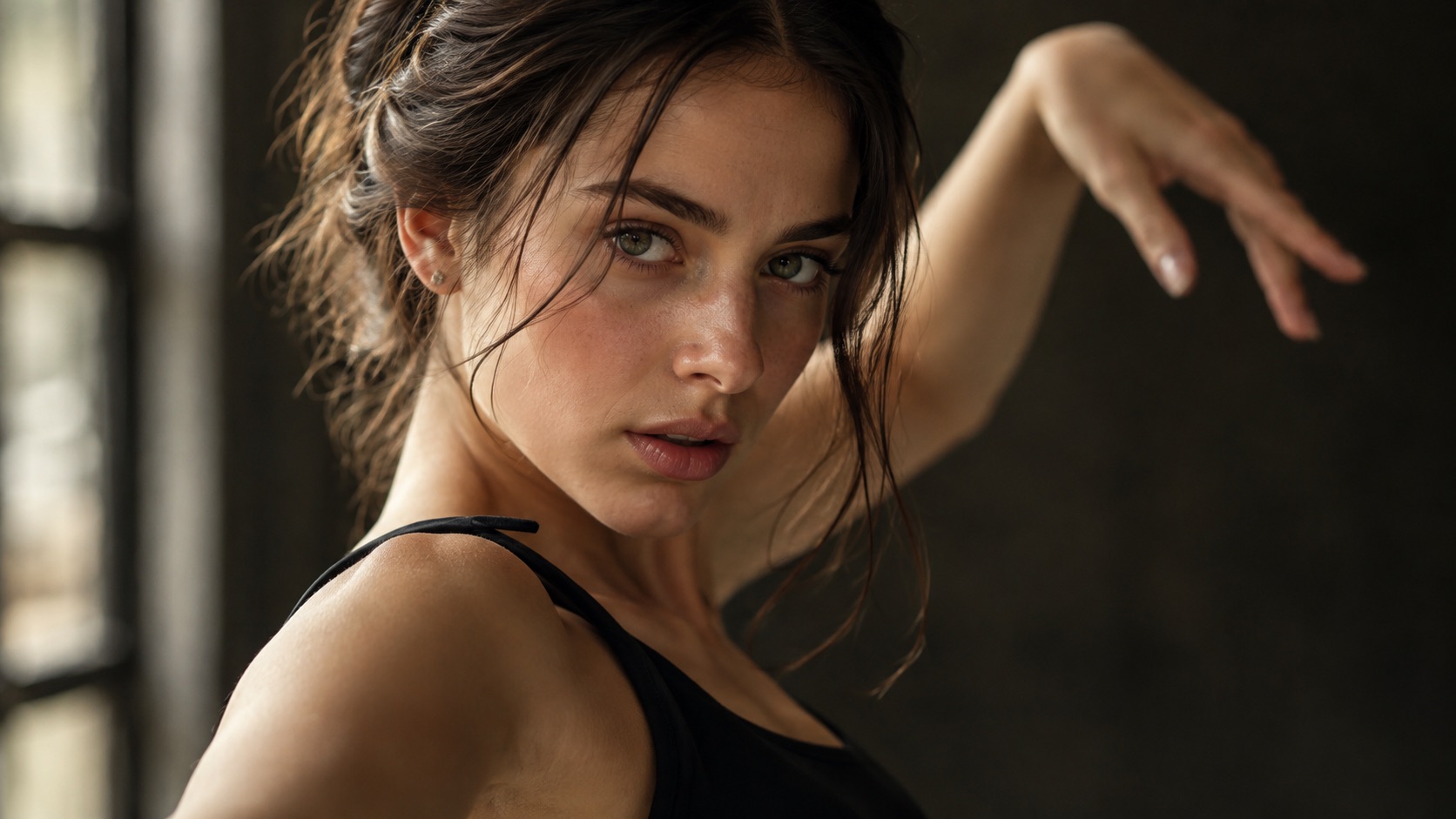
A dance clip can keep the beat and still lose the person. The body moves, the timing lands, and the face belongs to someone else. In image-to-video, that is rarely a rendering bug. It is the model making a reasonable guess from a photo that did not give it enough to hold.
This studio runs Seedance 2.0 and turns one or two reference photos into a 4 to 15 second clip, silent, with no watermark. It offers 5, 8, 10 and 12 second lengths, 9:16, 1:1 or 16:9 framing, and four looks: Classic, Hype, Smooth and Cute. The dance is generated; the identity is inferred.
What the model uses to recognise a face
The model does not carry a copy of your photo into every frame. It reads the still and tries to keep the person consistent as it generates motion. The evidence it works from is visible in the frame.
- Face shape and silhouette: the jawline, cheekbones, forehead width and the outline against the background.
- Hairline and hair volume: where the hair starts, the part, the length and how it frames the face.
- Eyes and brows: position, spacing, shape and gaze direction. A large part of what makes a face recognisable sits in the upper third.
- Skin tone and shading: the undertone and the way light falls across the nose and cheeks.
- Secondary cues: body proportions, clothing colour and accessories.
| Signal | Why it matters | What weakens it | | -------------- | --------------------------------------------- | ------------------------------------------------ | | Face shape | Holds the silhouette across frames | Profile view, shadow, hair covering the jaw | | Hairline | Anchors the top of the head | Hat, cropped crown, heavy filter | | Eyes and brows | The strongest recognition cue | Sunglasses, blur, averted gaze | | Skin tone | Stops the face drifting toward a generic look | Coloured lighting, strong grade, low-light noise | | Mouth and jaw | Keeps expression readable without warping | Open-mouth smile, a hand near the face |
None of these needs to be perfect. They need to be present. When several are missing at once, the model does what any guessing system does: it produces a plausible face with the right general shape and the wrong specific person.
Why distance, blur, filters and group photos break it
Most identity failures come from four input problems. They often arrive together, which is why a single bad photo can produce several kinds of drift.
Distance
Identity lives in small details, and small details need pixels. A full-body shot taken from across a room can give the model plenty of body and very little face. It will animate the body, but the face becomes a suggestion. The same thing happens when a 9:16 crop is taken from a wide landscape photo: the crop may keep the dancer and cut the detail.
A practical test: view the photo at phone size. If you cannot describe the eyes and hairline, the model cannot either. Waist-up framing is usually the best compromise.
Blur and compression
Motion blur, soft focus, low light and a screenshot of a screenshot all remove the same thing: fine detail. The model cannot recover what is not there, so it fills the gap. The result is often a face that looks close at a glance and wrong when the camera settles.
Sharpness matters more than file size. A clean, well-lit phone photo usually beats a heavily compressed export. Chat apps recompress images, so use the original file when you can.
Filters
Beauty filters do two things that hurt identity. They smooth skin texture, removing the shading the model uses to hold a face, and they change geometry: larger eyes, a narrower jaw, a smaller nose. The model carries the filtered face faithfully. Strong grades and vignettes also clip shadow detail around the eyes.
Use the original photo if you have it. If the only photo is filtered, expect the render to keep the filter. That is the input, not a model error.
Group photos and occlusion
A group photo asks the model to choose. It may pick the wrong face, average several faces into one, or swap between them as people move. The pipeline accepts one or two reference photos, and the second is best used as another view of the same person. For two dancers, use separate photos in the couple workflow.
Sunglasses, masks, hands, hair across the face and a turned profile remove the same cues. A three-quarter angle still shows both eyes and the hairline; a full profile does not.
The fix order: photo, prompt, length
Most people respond to a bad face by rewriting the prompt. That is the third thing to change, not the first. The photo decides what the model can know, the prompt decides what it does with that, and the length decides how long it must hold it.
1. Photo first
Run through this list before you touch the prompt.
- One person or animal, front or three-quarter angle.
- Eyes visible, no sunglasses, no hair across the face.
- Face and upper body occupy a useful part of the frame. Waist-up is a good default, with headroom for 9:16.
- Even light, with no hard shadow splitting the face.
- Sharp, unfiltered original, not a screenshot of a social post.
- JPG, PNG or WebP up to 10 MB.
- If all you have is a group photo, crop to one person before uploading.
If the photo passes this list and the face still drifts, move to the next step. If it fails two or more items, fix the photo first.
2. Prompt second
Use the look presets as a starting point. Classic is a relaxed two-step, Hype adds fast footwork and big arm swings, Smooth is a slow groove, and Cute is a small bounce for pets and characters. All four are editable.
- Keep the identity clause short: keep the face, hair and clothing as supplied.
- Do not describe a different face. "A woman with sharp cheekbones and green eyes" invites the model to build that face instead of preserving yours.
- Do not ask for a new expression, age or hairstyle, and keep hands away from the face.
- Prefer Classic or Smooth when identity is the priority. Hype is hardest on a face because the arms move fast and cross the head.
Editing words can remove a conflict, but it cannot add detail the photo never had. If the face is generic from the first frame, go back to the photo.
3. Shorter clip third
Every frame is another chance to drift. A 5 second clip gives the model fewer frames to invent than a 12 second clip; drift that appears at second nine often disappears at second four. Start at 5 or 8 seconds when testing a new photo, and keep 12 for a clip whose identity already holds.
Length also changes cost. At 12 seconds, 480p is 12 credits, 720p is 26 and 1080p is 64. A 480p 5 second preview costs 5 credits, and the first per account is free. The Generate badge shows the exact price.
Resolution is not the fix. 480p can hide a small artifact, but it does not preserve more identity than the photo contained. Use it as a cheap test, then render the postable version at 720p.
When to re-render and when to stop
Generation is stochastic. The same photo and prompt do not produce the same clip twice. That cuts both ways: a re-render can fix a bad frame, and it can introduce a new one.
Re-render when:
- The face is right in the first frame and drifts later.
- One short section warps and the rest works.
- An arm crosses the face and the model loses it for a few frames.
Change the input when:
- The face is wrong from the opening frame.
- The subject looks like a different person for the whole clip.
- Two faces have merged, or the model picked the wrong person from a group.
Accept the result when the person is recognisable at normal speed and the face stays consistent enough that a viewer does not pause. Frame-by-frame comparison will always find small asymmetries. The bar is recognition, not a pixel match.
When a clean photo, a simple prompt and a short clip still fail, another re-render is reasonable. When any of those inputs is still weak, a re-render is just spending credits on the same guess.
A short checklist before you spend credits
- The photo is sharp, original and unfiltered.
- One subject, eyes visible, face large enough to read.
- Waist-up or full-body framing with headroom for 9:16.
- The prompt keeps identity and does not redesign the face.
- Length is 5 or 8 seconds for the first test.
- The look is Classic or Smooth if identity matters most.
- The 480p preview is used before a 720p render.
- One change per retry, so you know what worked.
More detail on what carries over from a still and what the model invents is in photo to dance video: what to expect. To try a single photo, open the photo to dance video tool. For text-to-video or a different scene, use the AI dance video generator.
FAQ
Why does the face change only after a few seconds?
Drift compounds. Each generated frame is influenced by the frames before it, so a small error early in the clip can grow. Shorter clips reduce the number of frames where that can happen.
Will a higher resolution fix a face that already looks wrong?
No. 1080p makes artifacts more visible, and it does not add detail the photo lacked. Fix the photo first, then choose resolution for the platform.
Should I upload a group photo and describe who to animate?
No. The model can still pick or blend the wrong face. Crop to one person first, then describe the scene.
Test identity on your own photo
The guide’s prompt is loaded and editable. You only need a photo.
Wipe Me Down Dance AI TeamWipe Me Down Dance AI turns a photo — or a written prompt — into a short dance video. An independent tool, not affiliated with Foxx, Lil Boosie, Webbie or Trill Entertainment.