AI Dance Video for Birthdays and Parties: A Practical Guide
A practical guide to AI dance videos for birthdays and parties: choosing the guest of honour photo, the right look, consent, group-chat delivery and montages.
 By Wipe Me Down Dance AI Team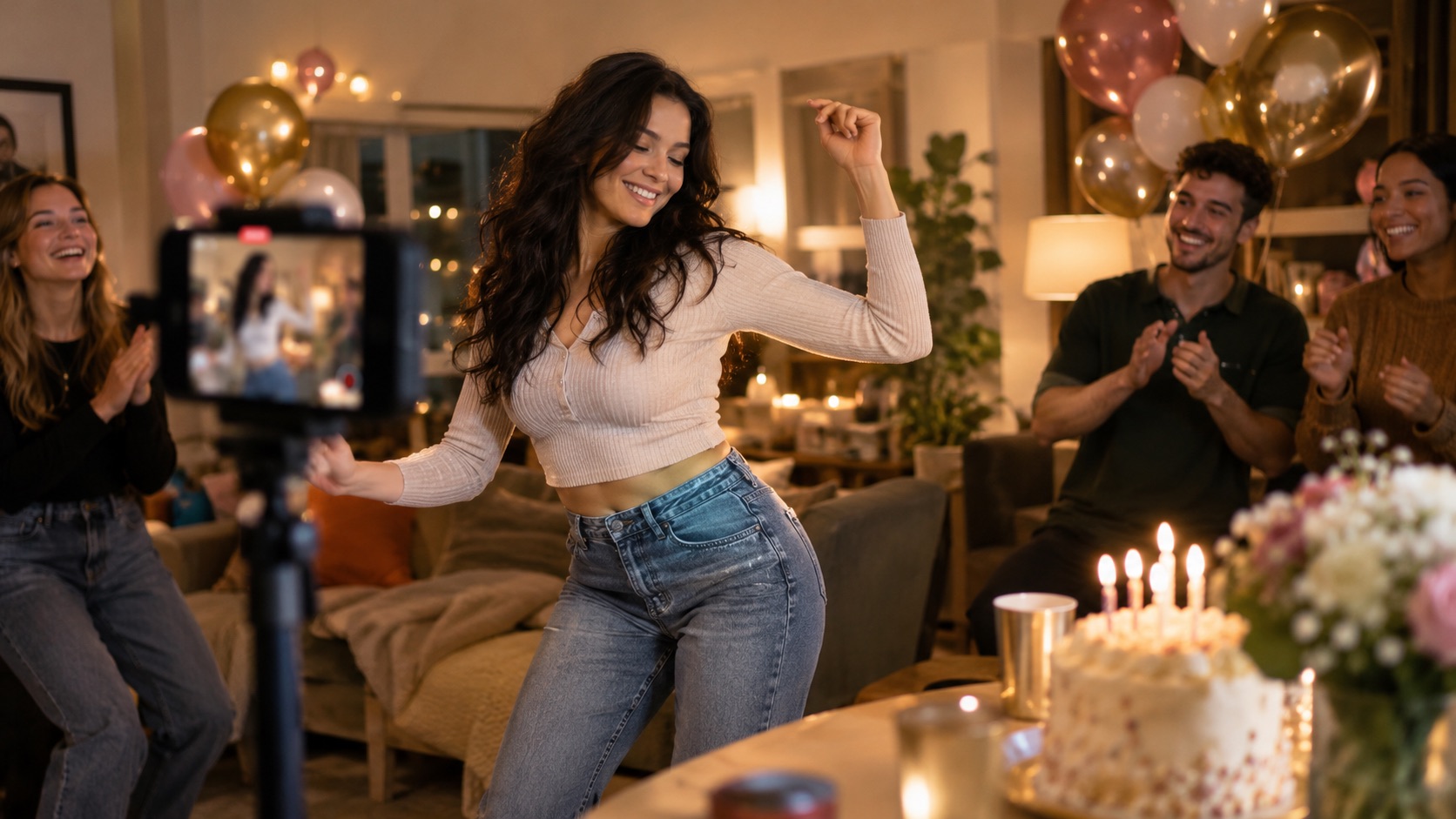
A birthday video is watched differently from a trend clip. It is made for one person, opened in a group chat or shown on a TV, and often played once before the cake. The photo matters more than the prompt, the look should fit the guest of honour rather than a feed, and consent comes before the first render.
Start with a photo of the guest of honour
Ask first. A surprise can be about timing rather than permission: ask a partner, parent or close friend to approve the photo and the look. If it is not a surprise, ask the guest. The photo identifies them, so it should be one they would be happy to see.
Seedance 2.0 keeps the face, hair, clothing and body proportions, then invents the movement. That makes the photo the largest quality decision you will make.
- One person, facing the camera, both eyes visible.
- Face and hands clear, feet in frame when possible.
- Even light and a simple background. Skip heavy filters and sunglasses.
- A recent, sharp photo with a natural expression.
- JPG, PNG or WebP up to 10 MB.
Do not crop a group photo to isolate one person. It can leave an arm at the edge, which the model may animate as a second person, and it uploads everyone else without their agreement. Choose a photo taken of one subject.
For a child, ask the parent or guardian. For a pet, use a clear photo and the Cute look. If the guest does not want their face in an AI render, switch to text mode and describe the scene; the result is a new person, not them. The photo to dance video guide covers that route.
Choose a look that fits the occasion
Match the look to the room rather than the trend.
| Occasion | Look | Suggested length | Why it fits | | --------------------------- | -------------- | ---------------- | --------------------------------------- | | Family dinner or milestone | Classic bounce | 8 or 12 seconds | Relaxed two-step that reads across ages | | Formal toast or tribute | Smooth groove | 8 or 12 seconds | Slow camera orbit and calm movement | | Teen or friends dance party | Hype | 8 or 12 seconds | Fast footwork and big arm swings | | Kids party or pet birthday | Cute | 5 or 8 seconds | Small hops and an eye-level camera | | Group-chat greeting | Classic bounce | 5 or 8 seconds | Opens fast and loops neatly |
If you are making several clips for one event, keep the same look. A montage that switches between all four feels chaotic; vary the photo and the room instead.
Keep the request to one continuous action. Do not ask for on-screen text inside the render, because lettering tends to warp; add a title card in an editor. Compare the four looks on the AI dance video generator. The studio supports 5, 8, 10 and 12 second lengths; the model supports 4 to 15.
Keep the clip short and the room readable
Length is a viewing decision. A 5 or 8 second clip suits a group chat and a loop on a screen. A 10 or 12 second clip suits a single showing where people are watching.
- Keep the subject large in the frame and the background simple. A wide shot of a busy room is hard to read on a phone.
- Use one continuous action with no cuts. A cut in a short clip is jarring.
- Choose the frame before you render: 9:16 for a phone, 16:9 for a TV or projector, 1:1 for a feed post. You cannot reframe afterwards.
- Do not bake a message into the video. Add it as a title card in an editor.
Every render is a silent MP4 with no watermark, so audio is a separate decision. For a private room, the host or venue handles playback. For a public post, use the licensed music library inside the platform you post to, not a downloaded track. The Reels and Shorts guide covers the posting details.
If it will play on a TV at the party, test the file on that screen and set it to loop before guests arrive.
Consent and privacy come before the render
The photo belongs to the person in it. Consent is the baseline, not a formality, and the rules vary by country and platform.
- Tell the guest what will happen: the photo goes into an AI tool, a clip comes back, and it will be shared with a named group.
- For a surprise, ask someone close to the guest to approve the photo and the look.
- For a child, ask the parent or guardian.
- Upload only a photo you have the right to use. Do not take one from a private album or someone else's phone.
- Share the finished clip, not the source photo.
- Label the clip as AI-generated when it is posted publicly.
- If the guest asks you to take it down, remove the post and delete the file. Consent can be withdrawn.
If someone declines, leave them out. A text-only render can still carry the joke without using their face. The site's privacy policy describes how uploaded images and account data are handled.
Send it in a group chat or post it
The same file behaves differently in a private chat, a public feed and a room. Pick the channel before you render, because the frame and length should match it.
| Channel | Format | Length | What to watch | | --------------- | ----------------------- | --------------- | ---------------------------------------- | | Group chat | 9:16 MP4 sent as a file | 5 or 8 seconds | Compression, timing, one line of context | | Social feed | 9:16 at 720p or 1080p | 8 or 12 seconds | Public consent, AI label, licensed audio | | TV or projector | 16:9 | 8 or 12 seconds | Test on the screen, loop, venue sound |
In a group chat, send the MP4 rather than a link that may expire. Some messaging apps compress video; send it as a file if it looks soft, and check playback. Add one line of context, such as "AI birthday dance for Mum, made from the photo she sent us," and send it at a reasonable hour. A video at two in the morning is a notification, not a gift.
Before posting publicly, get explicit consent, especially for children. A private family group is not a public feed. Use the platform's AI label, caption the clip honestly and do not tag people who have not agreed to appear. The render is silent, so add music from the platform's licensed library.
Build a montage from several clips
A montage turns one greeting into a gift for the whole group. The work is mostly planning.
- Decide who gets a clip. One per guest or household is easier than one per person in a large family.
- Keep the look, length, frame and resolution identical. Mixed aspect ratios pillarbox, and mixed lengths make cutting harder.
- Write a shot list with names and order, and rename each file as you download it.
- Render each clip from the best photo. The credit badge shows the exact cost; 720p 12 seconds is 26 credits, 480p 12 seconds is 12, and short lengths cost proportionally less.
- Edit on a phone or desktop editor: hard cuts, consistent trims, a title card per person and one music track.
- Export at 1080p in the source aspect ratio, then send it or load it for the party.
Avoid elaborate transitions. They hide the dance, add editing time and make a short clip feel busy; a hard cut is easier to watch.
A group-chat montage works around 30 to 60 seconds; a party loop can run longer. Put the birthday message at the start or end, and keep one title style so the set looks deliberate.
Consent applies to the montage too. A private clip is not a public montage; ask again before posting, and leave out anyone who declines rather than cropping them out.
Before you render
- Permission from the guest or a close family member.
- One clear photo, one person, hands and feet visible where possible.
- 9:16 for phones, 16:9 for a TV.
- One continuous action and no text inside the render.
FAQ
Can I make a birthday clip without the person's permission?
No. Ask them, or ask someone close to them if it is a surprise. If they decline, use a text prompt instead of their photo, or leave them out.
Which look is best for a birthday?
Classic bounce for a mixed-age room, Smooth groove for a formal dinner, Hype for a younger dance party, and Cute for children and pets. Pick one look for the whole set if you are making a montage.
Can I add "Happy Birthday" to the video?
Add it in an editor after the render. Text requested inside the render often warps, and the presets are built for movement rather than lettering.
How do I send the clip without losing quality?
Send the MP4 as a file or document rather than a compressed preview, and check it after it sends. Some group chat apps re-encode video, which softens a 480p file quickly.
Can I use the birthday song?
For a private room, playback is a matter for the host and the venue. For a public post, use the music library in the platform you post to. The render itself is silent.
Make a birthday clip
The guide’s prompt is loaded and editable. You only need a photo.
Wipe Me Down Dance AI TeamWipe Me Down Dance AI turns a photo — or a written prompt — into a short dance video. An independent tool, not affiliated with Foxx, Lil Boosie, Webbie or Trill Entertainment.