Edit a finished clip
AI Dance Video Editor
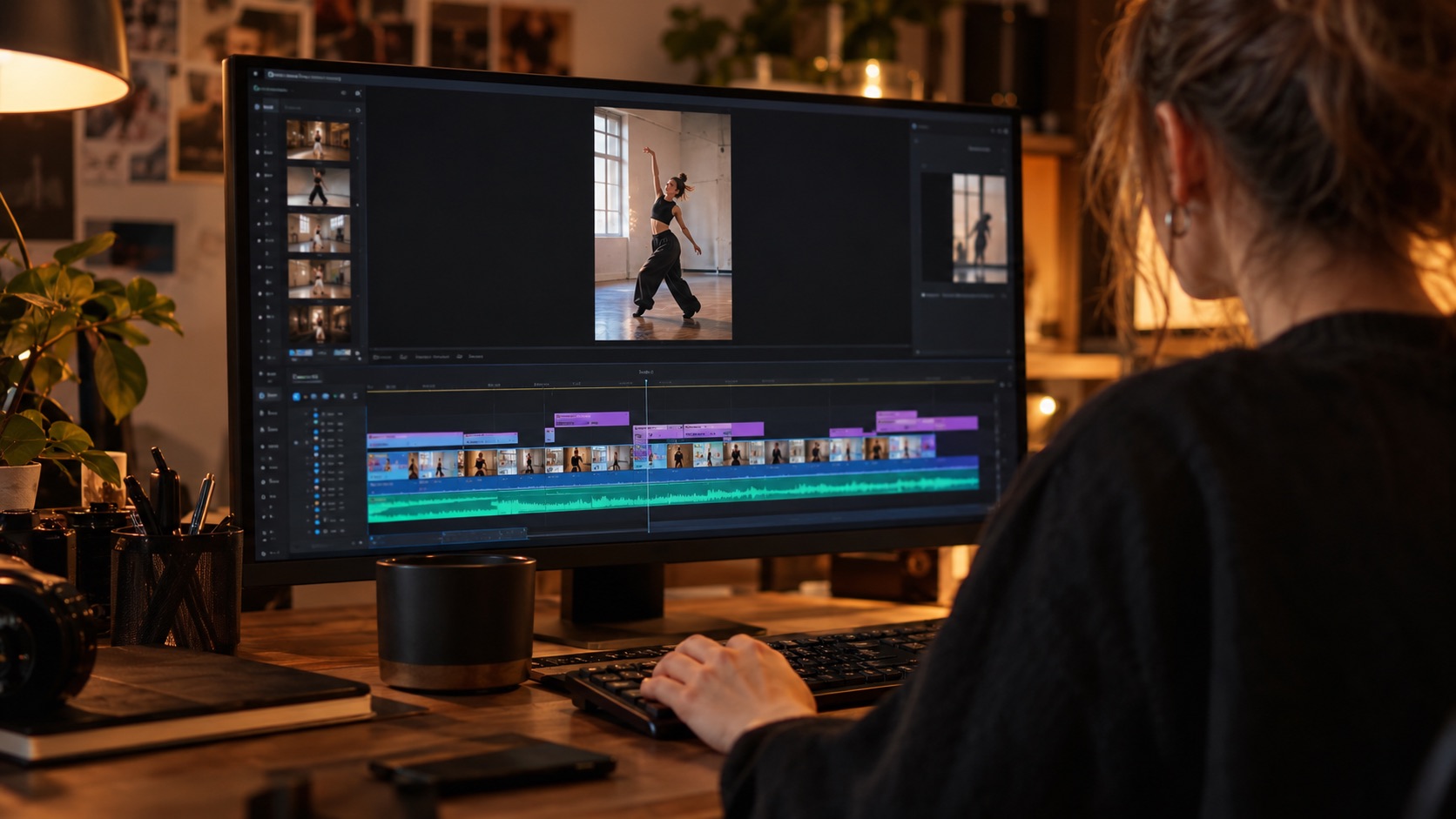
An AI dance video editor changes a clip you have already generated instead of starting again from a still photo. Pick a finished render, describe what should change, and the model reworks that performance.
One free 480p · 5s video preview per account. Image renders from 3 credits. No watermark.
The short answer
Wipe Me Down Dance AI edits a clip you already made: choose a finished render from your account, describe the new motion or framing, and Seedance 2.0 reworks that video. An edit is priced at double the standard render for the same length.
Upload one photo and the subject in it performs the dance, keeping the face, hair and body from your picture.
This clip: 26 credits · 7 renders a month for $39.90 (Pro), or 92 a year for $319
Specs at a glance
- Input
- A finished render in your account
- Model
- Seedance 2.0 (video reference mode)
- Output length
- 4–15 seconds
- Resolution
- 480p, 720p or 1080p
- Frames
- 9:16, 1:1 or 16:9
- Price
- Double the standard render
- Watermark
- None
- Refunds
- Automatic on failure
How it works
- 1
Make or open a finished clip
Edits start from a render in your own account, not an upload. If the list is empty, make one with Photo to video first; the result is saved automatically.
- 2
Pick the clip and describe the change
Select a clip, then write what should be different: faster footwork, a closer camera, a calmer ending. The original face, outfit and room stay recognisable because they are already in the reference video.
- 3
Choose the output spec
Pick 480p, 720p or 1080p, a length and a frame. The studio shows the edit price before you press Generate; nothing is charged until the request is accepted.
- 4
Review and download
The new render plays in the page and downloads as an MP4 with no watermark. Both the original and the edit stay in your account, so you can keep the take you prefer.
What an edit actually changes
Seedance 2.0 accepts a reference video as well as a reference image. In edit mode the studio sends the finished clip and your instruction, and the model generates a new performance that follows the reference motion and appearance instead of inventing a person from a prompt.
The practical result is continuity. The face, hair, clothing and room are carried over because the model can see them in the clip. What changes is the part you asked for: timing, energy, camera distance or the shape of the ending.
- Reference clips come from your own finished renders
- The original photo is never uploaded again
- Output resolution, length and frame are chosen per edit
- Edits cost double the standard render for the same spec
Why the price is higher than a fresh render
The provider bills a video edit for both the reference clip and the output, so a twelve-second edit consumes roughly twice the model time of a twelve-second text or photo render. The studio charges the same table multiplied by two rather than hiding that cost in a separate fee.
The exact figure is always visible next to the Generate button and updates when you change resolution or length. A failed edit is refunded automatically, like every other render on the site.
When to edit instead of generate again
Generate again when the whole idea is wrong: a different person, a different room, a different dance. Edit when the idea is right and one property is wrong. Re-rolling a good clip wastes the credit you already spent and rarely fixes a single defect.
Edits also suit iteration. Make one strong base clip, then produce a faster version, a closer version and a calmer version from it. That is cheaper than three unrelated generations and keeps the series visually consistent.
What people use it for
Fix a clip that is almost right
The face works but the arms are stiff, or the ending cuts too early. An edit keeps the take you liked and changes only the part that failed.
Make a second version for another platform
Rework a 16:9 take into a tighter vertical performance for Reels, or slow the same routine down for a longer feed post.
Build a small series
Re-edit one strong clip into three variations for a week of posts without photographing the person again or repeating the same generation.
Iterate without a fresh upload
Your reference clip is already on the provider’s CDN and already screened, so the edit flow never asks for the original photo a second time.
Frequently asked questions
Read the guide first
Longer, evidence-based walkthroughs for people who want the prompt, the settings and the failure modes before spending credits.
 How to Post a Wipe Me Down AI Clip on Reels and ShortsPost a Wipe Me Down AI dance clip on Instagram Reels and YouTube Shorts: vertical framing, clip length, captions, audio rules, AI labels and a checklist.
 After the Render: Download MP4, Storage, and SharingWhere finished dance clips are stored, how to download the MP4, what format and resolution you get, how to share to a phone, and how to re-render at higher spec